Shadowrocket Setup Guide
Start with the details you already have and follow the steps for importing, choosing a routing mode, and verifying the connection. First establish a connection you can test, then adjust rules and automatic connection conditions.
- iPhone / iPad instructions
- Five-step setup
- Official screenshots
This guide follows the order of a first-time setup; you don’t need to change every setting at once. Official screenshots help identify controls, but fields may vary depending on the selected Type, app interface, and active configuration. Follow what appears on your device. Subscription URLs, QR codes, and passwords are sensitive; don’t share them while following these steps.
STEP 01 / INPUT
Add a Server and Import a Subscription
First identify what details you have. A URL used to update a server list is usually imported as a subscription. Details containing a protocol, address, port, and authentication parameters are usually added as an individual server. The two use different fields: don’t split a subscription URL into Host and Port, and don’t guess the Type based on how a link looks. Check the intended use and field instructions from the provider of your details.
Have a subscription link? Choose Subscribe
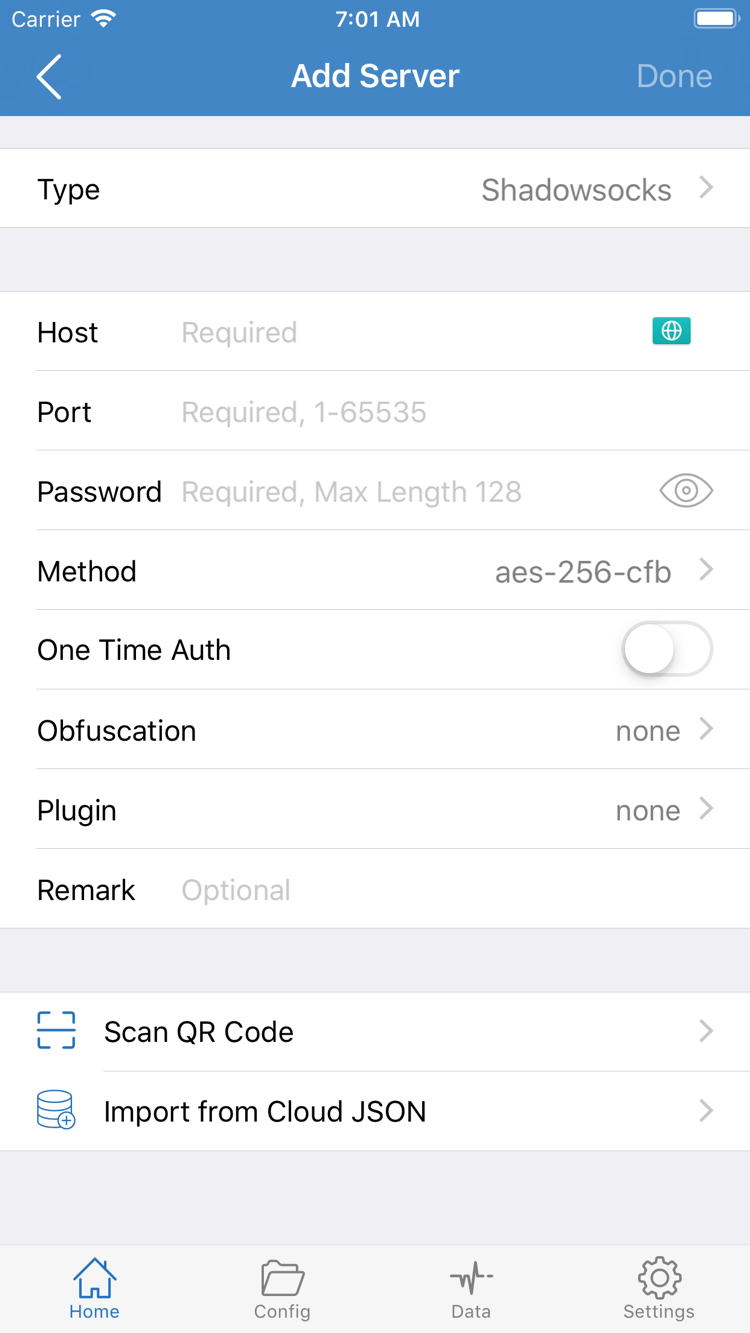
Go to Home and tap Add Server. On the add screen, tap Type and choose Subscribe, then paste the full URL into the subscription field. Keep all query parameters when copying; don’t add spaces, line breaks, or explanatory text. Some parameters identify the subscription, and omitting even part of the URL can prevent updates. The name helps you recognize the source; it does not determine how the connection works.
After saving, return to Home and wait for the list to load. If an update option is available, use it for this subscription. A successful import means more than just saving the URL: a selectable server entry should appear under SERVER. If you see the subscription name but no entries, check the update result and URL, then follow Troubleshooting. Don’t add the same URL repeatedly.
Have server details? Fill in the fields for the selected Type
If you have details for a single server, open Add Server, choose the correct Type, and fill in the corresponding fields. The screenshot shows a form with Host / Port / Password / Method; fields can differ by protocol. Enter the server domain or address in Host, the port in Port, and copy authentication details and encryption options exactly as provided. Don’t invent parameters just to fill every field.
If your details are provided as a QR code, use Scan QR Code at the bottom of the add screen and grant camera access when prompted. After scanning, check the Type, address, and port. Import from Cloud JSON is a separate import option, not a way to import any subscription link; use it only if your existing details are specifically intended for it. Save, return to Home, and confirm that the entry appears and the intended server is selected. That completes the add step; next, choose how traffic should be routed.
STEP 02 / ROUTING
Choose a Global Routing mode
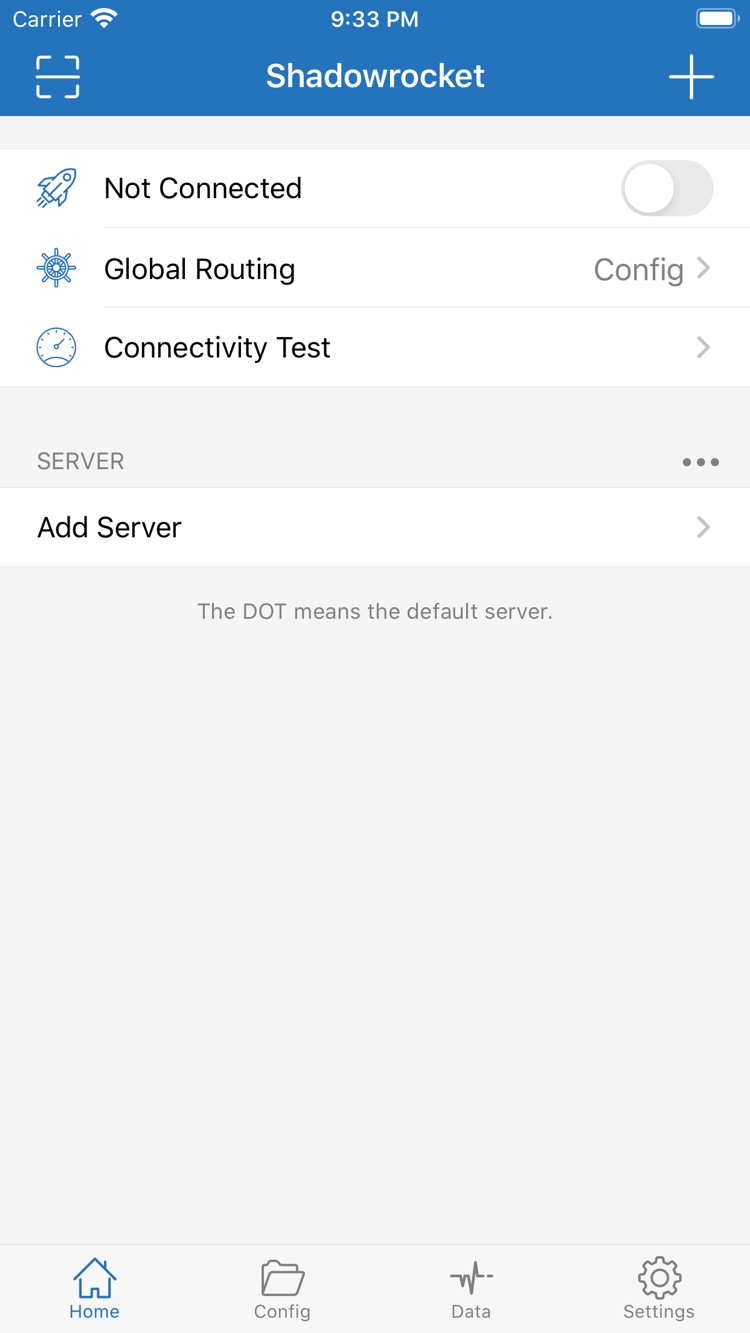
Once the server appears on Home, don’t turn on the connection yet. Tap Global Routing to check the current selection. This controls how traffic is handled; it does not select a protocol or change the server. This guide covers three options: Config / Proxy / Direct, matching the English labels in the app.
Understand What Each Option Does
Config uses the rules in the active configuration file to choose how traffic is routed. Rules may send some requests through DIRECT, others through PROXY, or block them with REJECT. So, a page opening in Config does not by itself prove that it used the selected server. Check the matching rule and connection records as well.
Proxy routes traffic through the proxy. It can reduce the variables introduced by rule-based routing during an initial check, but results still depend on the server, destination, and related settings. Direct uses a direct route and can help you check the device’s network; successful access in Direct does not prove that the server you added works. Note the current selection before testing so you don’t confuse results from different modes.
Check the Configuration Before Using Config
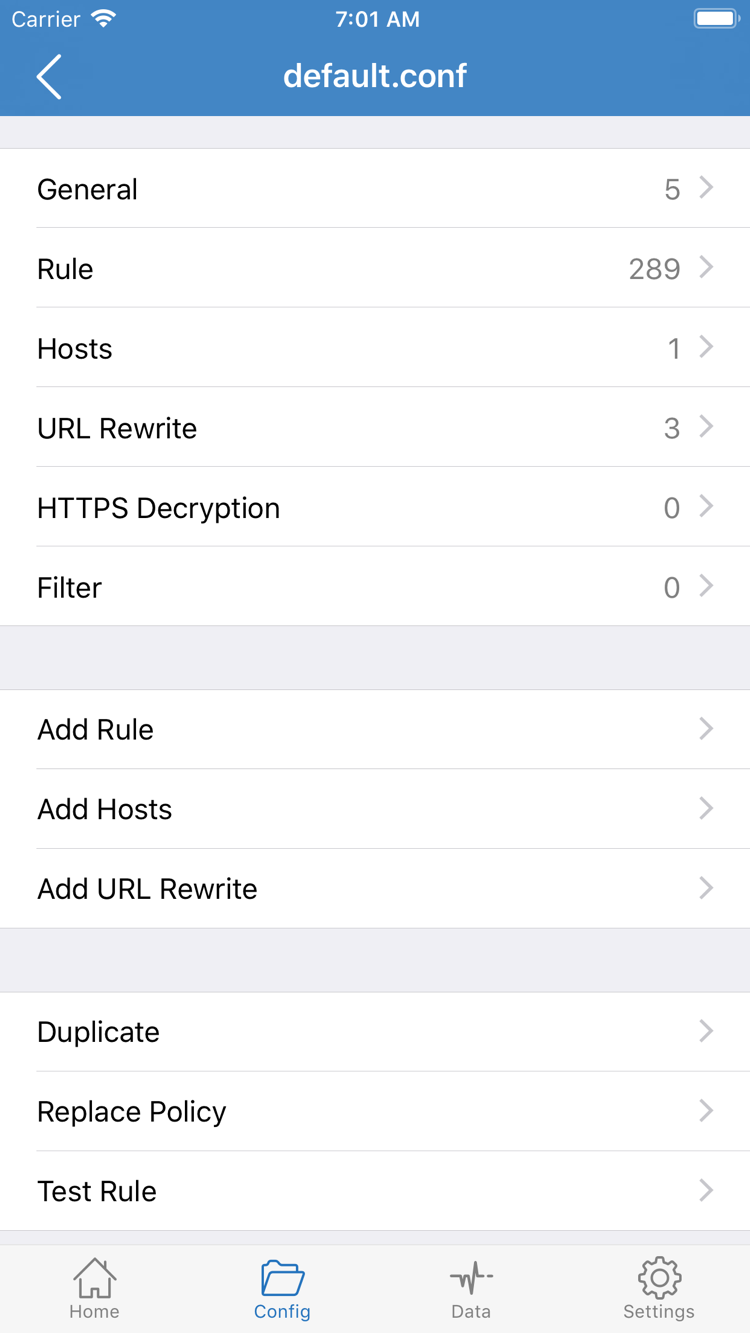
If you plan to use Config, open Config and check the active configuration file and its Rule section. The screenshot’s General / Rule / Hosts / URL Rewrite / HTTPS Decryption are separate sections of the configuration editor. For this initial setup, identify the configuration and rules; you don’t need to edit every section to connect. Add Rule adds a rule, not a server.
Subscriptions mainly update server details; configuration files affect rules and other connection settings. Importing one does not mean the other is ready. If you already have a configuration, leave it unchanged for now. Don’t copy an unfamiliar configuration without a clear need. For your first verification, note the routing mode you use; after the connection works, switch to the Config you need and test again. For a deeper look at rule order, policies, and protocol fields, see the Technical Reference. For now, focus on a repeatable connection check.
STEP 03 / CONNECT
Connect and Approve the VPN Configuration
Return to Home and confirm that the intended server is selected under SERVER. Check that Global Routing still matches your plan. If the list contains multiple entries, don’t identify the server by its position alone; check its name and details so you don’t select an older entry by mistake.
Tap the connection switch at the top of Home. The first time you connect, the system may ask to let Shadowrocket add a VPN configuration. This prompt is the system’s approval step for managing network configurations; it is not a subscription purchase page and won’t fill in server details for you. If you initiated the request, follow the system prompts to allow it and complete any required device authentication.
After approval, return to Shadowrocket and check whether the status at the top changes from Not Connected to a connected state. If approval is complete but the switch is still off, confirm the selected server and turn it on again. If the status changes briefly and then disconnects, note any message shown. Don’t repeatedly toggle the switch, change servers, and edit rules at the same time; it will be difficult to tell what affected the result.
Check Connection Status and Actual Access Separately
An enabled switch means the system connection process has reached the corresponding state, but it doesn’t mean every destination is accessible. Server authentication, DNS resolution, routing policy, and the destination itself can all affect requests. Keep the server and mode unchanged, then test the same destinations in the next step. Don’t end verification based only on the status at the top or the system VPN indicator.
If another VPN configuration is already enabled on the device, check in system settings which configuration is currently in use to avoid competing connection states. When you don’t need a connection, turn off the switch on Home. If it reconnects automatically after you turn it off, check the On Demand conditions rather than assuming the manual switch isn’t responding. First confirm that manual connection works; set up automation after the connection is stable.
STEP 04 / CHECK
Verify the Connection and Rules
Check three things separately: whether the server responds to a test, whether you can access the actual page, and whether the request follows the intended policy. These are related but not interchangeable. Keep the selected server and Global Routing mode unchanged. On Home, tap Connectivity Test and check the result before testing actual access.
Results depend on the test method and destination. A result for one entry means that specific test received a response; it doesn’t guarantee that every app, domain, or UDP request will work. A timeout also requires checking the test conditions before drawing conclusions about all servers in a subscription. If you need to change Test Method, note the original setting first, then compare results using the same method. Don’t draw a direct comparison between different test conditions.
Check Access with an Actual Request
Switch to your browser and open a familiar page that normally works. Make sure the main content loads; don’t rely only on the page title or cached content. Then try the app you actually need to use. If one page works and another doesn’t, narrow the issue down to the specific destination rather than deleting the subscription or resetting all settings. Refresh the page or make a new request if needed to observe a fresh connection.
Return to Shadowrocket and check the available connection records in Data for the destination you just visited and its associated policy. When using Config, check that the result matches the rules: requests expected to go direct should use DIRECT, and those expected to use the proxy should use PROXY. If you see REJECT, check the relevant rule instead of switching servers. The information shown in the records depends on the current app interface.
A complete verification should identify the server used, the routing mode, the destination, and the result. Once all four are clear, restore your everyday rules or On Demand settings one at a time, repeating the same request after each change. This makes it easier to return to the last verified state if something goes wrong. Speed-test numbers alone don’t describe the whole experience; results also depend on request type and current network conditions.
STEP 05 / DIAGNOSE
Troubleshoot one step at a time
Start troubleshooting at the earliest step that failed. If the list hasn’t loaded, check the details first. If the server appears but won’t connect, check its parameters and system approval. Change one thing at a time and record the results before and after. Don’t start by reinstalling the app: doing so can make it harder to restore local data and settings, and may remove useful clues.
Saved successfully, but the SERVER list is empty
Return to the subscription entry and check that Type is Subscribe, the URL is complete, and you haven’t entered an ordinary webpage address instead. Confirm that the device’s current network can reach the URL, then check any message shown during the update. Which entries a subscription returns and whether its authentication is valid depend on the associated service. Contact the provider of your details if needed. Don’t include the full subscription URL in public posts or screenshots.
The entry is there, but the connection won’t establish
Check Type, Host, Port, and authentication fields one by one. Look for spaces added during copying and incorrect letter case. Some protocols also require transport or TLS parameters; use the details provided for your server rather than filling in only the familiar-looking fields. Then confirm that system VPN approval is complete and the correct server is selected. Once the parameters and approval are confirmed, run the same Connectivity Test again.
Connected, but some requests fail
Check Global Routing first. Direct doesn’t test the proxy server; in Config, check the matching rule and policy. If you have a clear test goal, temporarily switch to Proxy and retry the same destination to distinguish a rule issue from a server access issue, then restore your original selection. If only certain domains fail, check the relevant DNS settings and connection records. Don’t change every DNS setting at once.
If You Need to Check Settings Further
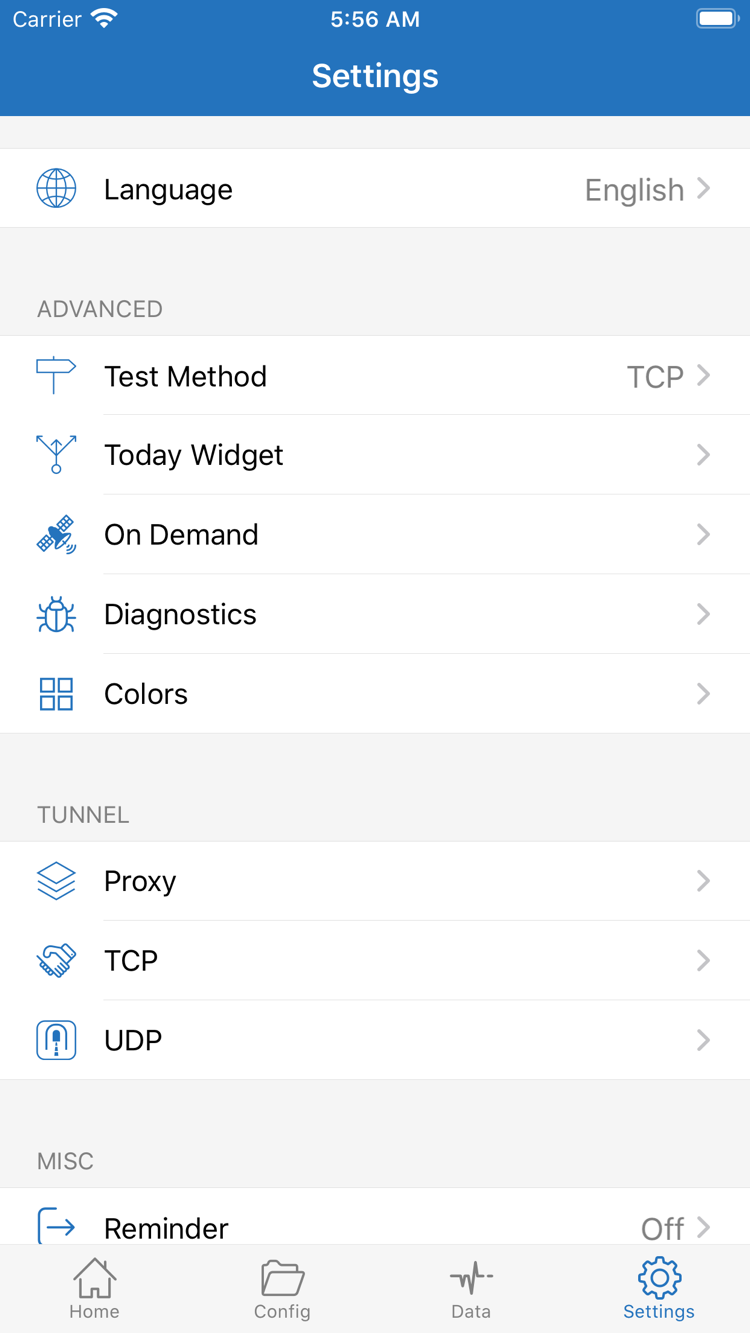
Open Settings and first identify Test Method / On Demand / Diagnostics. Test Method affects how tests run, On Demand controls automatic connection conditions, and Diagnostics provides further troubleshooting. These settings have different purposes; they aren’t general-purpose fix switches. If the connection returns after you manually disconnect, check On Demand first. If test results differ from actual use, check Test Method.
The screenshot also shows settings groups such as Proxy / TCP / UDP. You don’t need to change these one by one for a first-time setup, and shouldn’t adjust multiple transport settings to troubleshoot a single page. When gathering details about an issue, note only what’s needed: the step that failed, Type, Global Routing selection, test method, and any message shown. Hide passwords, subscription parameters, and other personal details before using diagnostic information to investigate.
If the issue persists, continue with Troubleshooting by issue category. For protocol fields, configuration files, and technical trade-offs, see the Technical Reference. Once connection verification succeeds, keep the working settings and add rules or automatic connection conditions gradually, rather than introducing several untested changes at once.